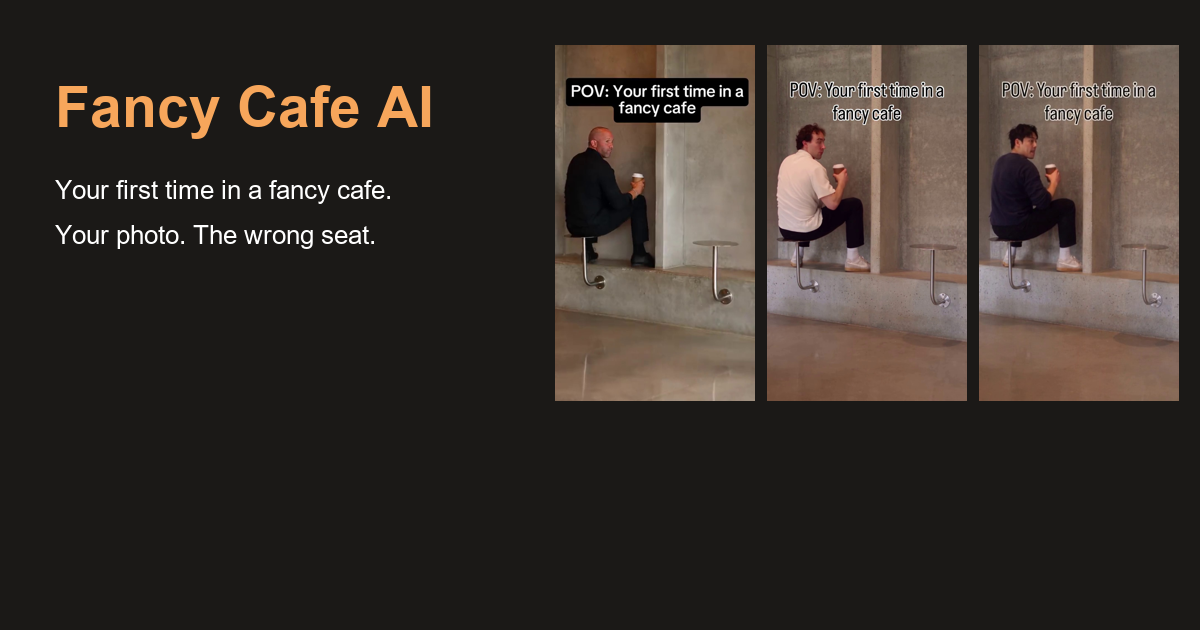
How to Make a Fancy Cafe AI Video With Two Selfies
Make a Fancy Cafe AI video with a friend using two separate selfies. Pick who sits on the table, choose portraits that work together, and frame the cafe scene for Reels or Shorts.
Say your friend sends you two options for a Fancy Cafe video. One is a sharp photo taken by a window. The other is a great picture from dinner, with one side of their face in shadow. The dinner photo might be the one you would keep in your camera roll. For a scene where your friend walks into a cafe and turns toward the camera, the window photo gives you more to work with.
That is the useful part of making a Fancy Cafe AI video with a friend. The scene is already laid out, so the choices you make before uploading are mostly about the cast. Who would sit down with absolute confidence? Who would walk in, take the actual seat and put a cup right next to them?
Who goes in Photo 1 and Photo 2?
In the With a friend mode, Photo 1 is the person sitting on the little table. Photo 2 is the guest who comes in and sits on the bench. The current two-person mode uses a fixed wall-corner cafe scene. The two selfies give that scene its cast, and the reference supplies the blocking and timing. Fancy Cafe AI studio
If one of you is famous for saying “I know a place” and immediately getting lost, give them the first slot. A friend who can communicate entire sentences with one look makes a good second guest. Those are casting ideas. The reference still determines what each person does on screen.
How to choose two selfies for the Fancy Cafe AI template
Ask each person for a single portrait with a sharp, front-facing face and even light. A bright window and a simple background will do. Heavy filters and sunglasses hide the details that make a friend recognizable. On iPhone, export a HEIC photo as JPEG first. The studio accepts JPEG, PNG and WebP. Fancy Cafe AI photo guidance
Open the two photos side by side before you upload them. If one face fills the frame and the other is barely visible at the far end of a table, find a closer photo for the second person. The two portraits can come from different days and different places. You are looking for a clear view of both faces, and similar framing makes that easy to judge at a glance.
Frame a Fancy Cafe AI video for Reels or Shorts
For a clip you plan to share in Reels, Shorts or a chat on your phone, start with 9:16. The studio also offers 16:9 for horizontal playback. The current clip runs for 15 seconds. You can choose 480p for 20 credits or 720p for 45, so choose the format and resolution before you generate. Browsing the reference and previewing your portraits are free. Rendering the clip uses purchased credits. Fancy Cafe AI settings and pricing
When the clip is ready, watch it on the screen where your friends will see it. Check that you recognize both people as they move and that the guest with the cup is easy to follow. Listen once, too, since the generated audio can differ from the reference. If you add a caption in an editor, leave the cup and the faces clear.
You can settle the casting with a single message to your friend. “Which of us would sit on the table first?” Once you agree, send one clear selfie each and put the answer in Photo 1. Open the Fancy Cafe AI studio
Weitere Beiträge
Your Camera Roll Has More Stories to Tell: Meet HypeMigo
A selfie, a friend, a very serious-looking dog. HypeMigo gives familiar photos a playful new role in AI dance, duo and meme video templates.

Bulin 47 AI Video From a Photo: A Freestyle for Your Group Chat
How to make a Bulin 47 AI video from a photo, with portrait tips, face swap details, original template sound and a clear look at paid generation.
Don't Explain the Joke Before the Coffee Arrives
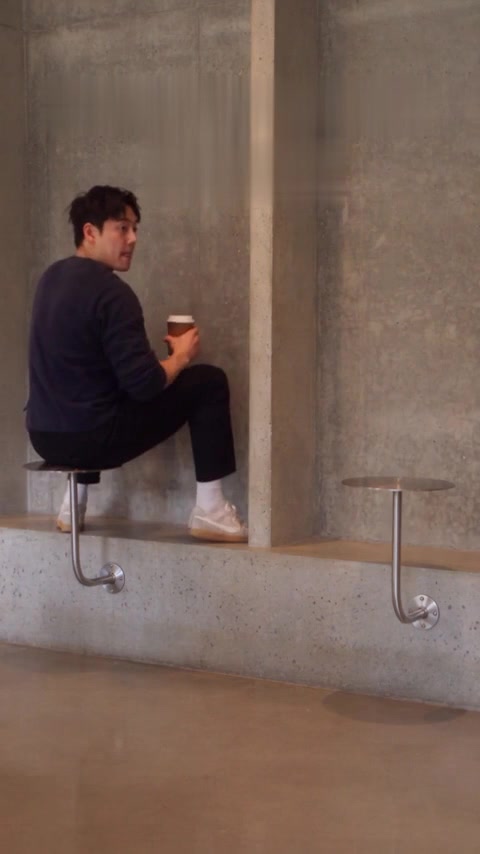
The wrong-seat cafe scene has a small reveal. Give viewers time to find it before adding the caption that tells them what to think.
Newsletter
Treten Sie der Community bei
Abonnieren Sie unseren Newsletter für die neuesten Nachrichten und Updates